
Deploy to Vercel with Prisma Postgres
Step 18 of 31 — Next.js Tutorial Series | Source code for this step
Commands in This Step
| Command | Purpose |
|---|---|
openssl rand -base64 32 | Generate a secure AUTH_SECRET value |
npx prisma migrate deploy | Apply pending migrations to the production database |
What You Will Build
You will deploy your finished Next.js app to Vercel — connected to the same Prisma Postgres database you have been using throughout this series.
Goal: A live, publicly accessible URL where anyone can register, sign in, create posts, and delete them — backed by your cloud-hosted Prisma Postgres database.
Table of Contents
- Before You Deploy
- Prepare package.json for Production
- Prepare .gitignore
- Push Your Code to GitHub
- Import the Project in Vercel
- Configure Environment Variables in Vercel
- Deploy and Verify
- Run Migrations on Production
- Common Deployment Errors
- Summary & Key Takeaways
Before You Deploy
Before pushing to Vercel, make sure:
- Your app runs locally —
pnpm devstarts without errors, you can register, sign in, create and delete posts. - You have a GitHub account — Vercel imports projects directly from GitHub.
- You have a Vercel account — Sign up for free at vercel.com. You can sign in with your GitHub account.
- You know your database credentials — You already have
DATABASE_URLandDIRECT_DATABASE_URLfrom Step 4 (Prisma ORM Setup). You can find them in your local.envfile or in the Prisma Console.
Prepare package.json for Production
When Vercel builds your app, it runs pnpm install (or npm install) and then pnpm build (which runs next build). But there is a problem:
Prisma Client must be generated before next build runs. Locally you ran npx prisma generate manually in Step 7, but Vercel does not know to do that.
The fix is simple — add a postinstall script to package.json. This hook runs automatically after every pnpm install:
{
  "scripts": {
    "dev": "next dev",
    "build": "next build",
    "start": "next start",
    "lint": "eslint",
    "postinstall": "prisma generate"
  }
}
Why
postinstalland notprebuild? Thepostinstallhook is a standard npm lifecycle script that runs on everypnpm install/npm install. Vercel runsinstallbeforebuild, so the Prisma client is generated in time. Theprebuildhook also works, butpostinstallis the pattern recommended by the Prisma documentation.
Open package.json and add the postinstall line:
"postinstall": "prisma generate"
Prepare .gitignore
The generated Prisma client lives in app/generated/prisma/. This directory is auto-generated by prisma generate and should not be committed to Git — it will be regenerated on Vercel during the postinstall step.
Check your .gitignore and make sure it includes:
# Prisma generated client
app/generated/
If this line is not present, add it now.
Why not commit generated files? Generated code is a build artifact — like
node_modulesor.next. Committing it bloats the repository and creates merge conflicts. Regenerating it on every deploy ensures it always matches your schema.
Push Your Code to GitHub
If you have not already created a GitHub repository for your project, do it now:
- Go to github.com/new and create a new repository.
- In your terminal, inside the project directory:
git remote add origin https://github.com/YOUR_USERNAME/YOUR_REPO_NAME.git
git add .
git commit -m "prepare for deployment"
git push -u origin main
If you already have a GitHub repo and have been pushing along with the tutorial, just make sure everything is committed and pushed:
git add .
git commit -m "add postinstall script for Vercel deployment"
git push origin main
Import the Project in Vercel
- Go to vercel.com/new.
- Click Import Git Repository.
- Select the GitHub repository you just pushed.
- Vercel will auto-detect that this is a Next.js project. You will see:
- Framework Preset: Next.js
- Build Command:
next build(leave as default —postinstallhandles Prisma) - Output Directory:
.next(leave as default)
- Do not click Deploy yet — first you need to add environment variables.
Configure Environment Variables in Vercel
This is the most important step. Your app needs four environment variables to work in production. In the Vercel project settings (before the first deploy, or under Settings → Environment Variables), add:
| Variable | Value | Where to find it |
|---|---|---|
DATABASE_URL | prisma+postgres://accelerate.prisma-data.net/?api_key=... | Your local .env file or Prisma Console → your project → Connection strings |
DIRECT_DATABASE_URL | postgres://...prisma.io:5432/postgres?sslmode=verify-full | Same location — the direct (non-pooled) connection string. Make sure sslmode=verify-full (see Step 4) |
AUTH_SECRET | A random 32-byte base64 string | Generate with: openssl rand -base64 32 |
NEXTAUTH_URL | https://your-app.vercel.app | Your Vercel deployment URL (you can update this after the first deploy) |
Where exactly to paste them
In the Vercel dashboard:
- Open your project.
- Go to Settings → Environment Variables.
- For each variable, type the Name (e.g.
DATABASE_URL), paste the Value, and choose which environments it applies to (select Production, Preview, and Development). - Click Add.
Here is what the Vercel "New Project" screen looks like with the environment variables filled in:
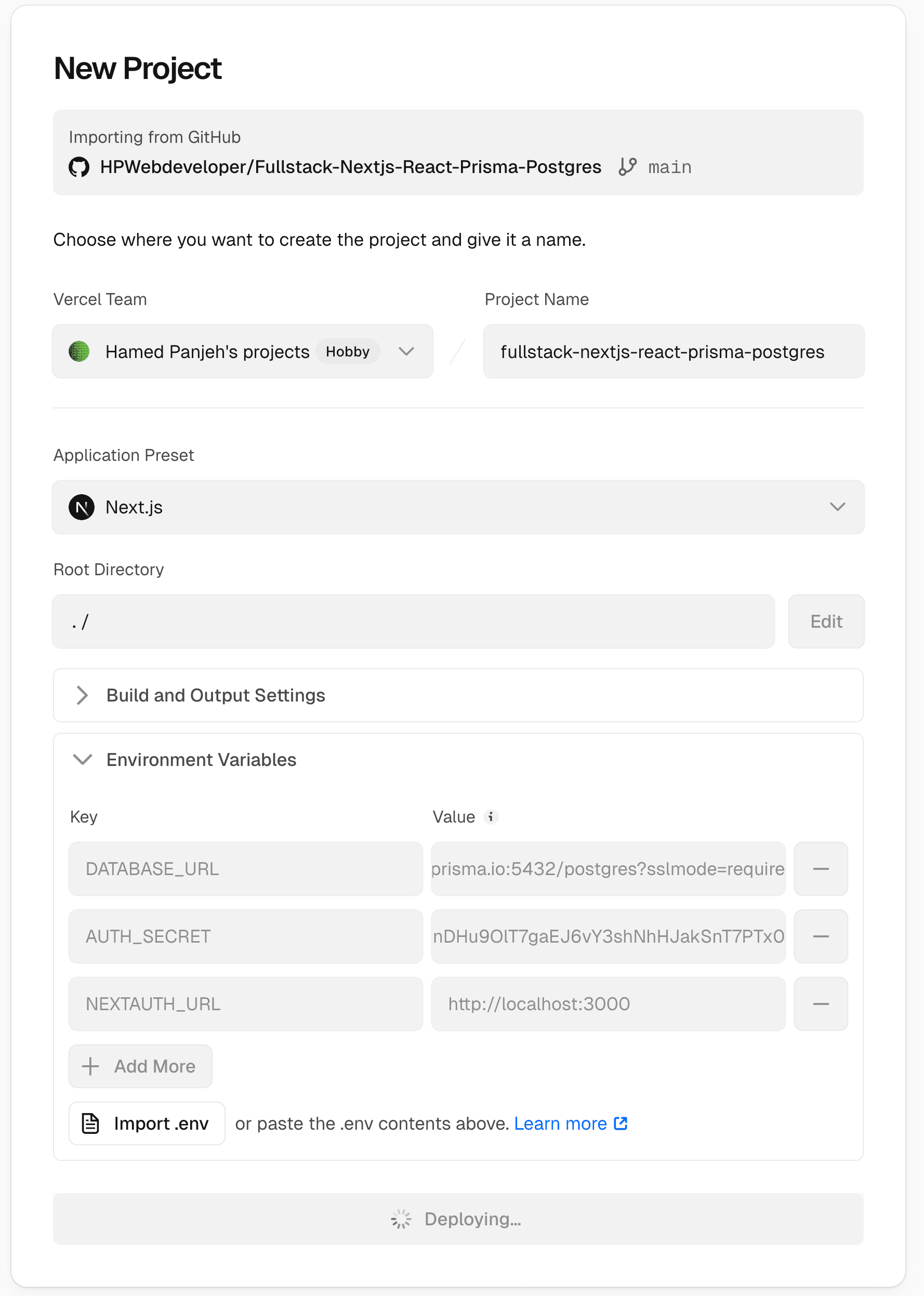
Important: The values are the same ones you have been using locally in your
.envfile — you are just telling Vercel about them. Your Prisma Postgres database is already running in the cloud; you are not creating a new one.
About NEXTAUTH_URL
- For the first deploy, you may not know the exact URL yet. Set it to any placeholder value.
- After a successful deploy, Vercel gives you a URL like
https://your-app-name.vercel.app. - Go back to Settings → Environment Variables, update
NEXTAUTH_URLto the real URL, and redeploy.
Tip: In newer versions of NextAuth.js deployed on Vercel,
NEXTAUTH_URLis often auto-detected from theVERCEL_URLenvironment variable. However, setting it explicitly is safer and avoids subtle bugs with callback URLs.
Deploy and Verify
- Click Deploy in the Vercel dashboard (or push a new commit — Vercel deploys automatically on every push).
- Watch the Build Logs. You should see:
prisma generaterunning during the install phase (thepostinstallhook)next buildcompiling your pages- A successful deployment message with a URL
- Open the deployment URL in your browser.
- Test the app:
- Visit the homepage — it should load.
- Click Sign In — the login page should render.
- Register a new account — registration should succeed.
- Create a post — the post should appear in the list.
- Delete a post — it should be removed.
If everything works, congratulations — your app is live!
Run Migrations on Production
Since you have been using Prisma Postgres from the start (set up in Step 4), your database tables already exist. The schema you ran migrations against locally is the same cloud database that your Vercel deployment connects to.
This means you do not need to run migrations again — the tables are already there.
However, if you ever change your Prisma schema in the future, you will need to apply those migrations to production. Here is how:
# Run from your local machine, pointing at the production database
npx prisma migrate deploy
This command applies any pending migrations to the database. Unlike prisma migrate dev, it does not create new migration files — it only runs existing ones.
migrate devvsmigrate deploy:
prisma migrate dev— for development. Creates new migration files, resets data if needed.prisma migrate deploy— for production. Runs existing migration files without generating new ones. Safe and non-destructive.
Common Deployment Errors
PrismaClientInitializationError: Can't reach database server
Cause: The DATABASE_URL environment variable is missing or incorrect in Vercel.
Fix: Go to Settings → Environment Variables in Vercel and verify that DATABASE_URL is set correctly. It should start with prisma+postgres://. After fixing, redeploy.
Error: Module not found: Can't resolve '../app/generated/prisma/client'
Cause: prisma generate did not run before next build.
Fix: Make sure your package.json has the postinstall script:
"postinstall": "prisma generate"
Commit, push, and redeploy.
Error [JWEDecryptionFailed]: decryption operation failed
Cause: AUTH_SECRET is missing or different from what was used to create existing sessions.
Fix: Set AUTH_SECRET in Vercel environment variables. Generate a value with openssl rand -base64 32. Redeploy.
NEXTAUTH_URL mismatch — login redirects to localhost:3000
Cause: NEXTAUTH_URL is not set or still points to http://localhost:3000.
Fix: Update NEXTAUTH_URL in Vercel to your production URL (e.g. https://your-app.vercel.app). Redeploy.
Build succeeds but pages return 500 errors
Cause: Usually a missing environment variable. The build can succeed because Next.js compiles pages statically, but at runtime the app crashes when it tries to connect to the database or validate sessions.
Fix: Double-check all four environment variables are set in Vercel. Check the Function Logs in the Vercel dashboard (under Deployments → your deployment → Functions) for the actual error message.
Summary & Key Takeaways
| Concept | What it means |
|---|---|
postinstall script | Runs prisma generate automatically after pnpm install — ensures the Prisma client exists before next build |
| Environment variables in Vercel | Go to Settings → Environment Variables — paste the same values from your local .env |
DATABASE_URL | The Prisma Accelerate URL (prisma+postgres://) — used at runtime for all database queries |
DIRECT_DATABASE_URL | The direct Postgres connection — used by prisma migrate deploy for schema changes |
AUTH_SECRET | A random secret that signs JWT tokens — generate with openssl rand -base64 32 |
NEXTAUTH_URL | Your production URL — tells NextAuth.js where to redirect after login |
prisma migrate deploy | Applies existing migrations to production — safe, no data loss, no new files created |
| Same database | Your Prisma Postgres database is already in the cloud — Vercel just connects to it with the same credentials |
Congratulations!
You have completed the entire tutorial series. Starting from an empty Next.js project, you have built a fullstack blog application with:
- Next.js 16 App Router and Server Components
- React 19 Client and Server Components
- Prisma ORM with PostgreSQL
- NextAuth.js v5 authentication with JWT sessions
- Server Actions for mutations
- Middleware for route protection
- Tailwind CSS for styling
- Vercel for deployment
Your app is now live on the internet. Share it with the world!