
Schema Design with Prisma: Models, Relations & Migrations
Step 5 of 31 — Next.js Tutorial Series | Source code for this step
Commands in This Step
| Command | Purpose |
|---|---|
npx prisma migrate dev --name init | Run the first database migration |
npx prisma studio | Open database GUI in browser |
npx prisma migrate dev --name test-connection | Verify schema is in sync |
npx prisma db pull | Pull schema from live database |
What You Will Build
By the end of this step you will have two database tables — User and Post — with a one-to-many relationship between them. You will understand how Prisma models map to database tables and how migrations keep your schema and database in sync.
Goal: Run npx prisma studio and see two empty tables — User and Post — in your browser.
Table of Contents
- The Problem: We Need Structure
- Core Concept: What is a Data Model?
- Define the User Model
- Core Concept: Field Types and Attributes
- Define the Post Model
- Core Concept: Relations — Connecting Models
- The Complete Schema
- Core Concept: What is a Migration?
- Run Your First Migration
- Inspect the Generated SQL
- Verify with Prisma Studio
- Verify the Connection
- Summary & Key Takeaways
The Problem: We Need Structure
Right now our database exists but has no tables. It is like having an empty spreadsheet application with no sheets created. Before we can store users and blog posts, we need to tell the database:
- What data to store — users have emails and names, posts have titles and content
- What type each piece of data is — an email is a string, a creation date is a timestamp
- How data relates — each post belongs to one user, each user can have many posts
- What rules to enforce — emails must be unique, titles cannot be empty
In raw SQL, you would write CREATE TABLE statements. With Prisma, you define models in schema.prisma and let Prisma generate the SQL for you.
Core Concept: What is a Data Model?
A data model (or just "model") describes the shape of one type of data in your application. Each model becomes a table in the database.
Think of a model like a TypeScript interface, but for the database:
// TypeScript interface (lives in your code)
interface User {
  id: string
  name: string | null
  email: string
  password: string
}

// Prisma model (lives in schema.prisma, becomes a database table)
// model User {
//   id       String  @id @default(cuid())
//   name     String?
//   email    String  @unique
//   password String
// }
Both describe the same shape. Notice the capitalization difference: TypeScript uses lowercase string, while Prisma uses uppercase String. This applies to all types — boolean vs Boolean, number vs Int, etc. Prisma has its own type system that maps to database column types, not TypeScript types. When Prisma generates the client, it converts String → string, Int → number, Boolean → boolean, and so on.
The Prisma model also defines:
- How the
idis generated (@default(cuid())) - Which fields can be null (
String?) - Which fields must be unique (
@unique)
Prisma uses this information to create the database table and generate a type-safe TypeScript client. You get the best of both worlds.
Define the User Model
Open prisma/schema.prisma. Currently it only has the generator and datasource blocks from Step 4. Add the User model after the datasource block:
model User {
  id       String  @id @default(cuid())
  name     String?
  email    String  @unique
  password String
  posts    Post[]
}
Let's break down every line:
model User { ... }
This declares a new model called User. Prisma will:
- Create a database table called
"User" - Generate TypeScript types:
User,UserCreateInput,UserUpdateInput, etc. - Add methods to the client:
prisma.user.findMany(),prisma.user.create(), etc.
Naming conventions: Prisma model names use PascalCase (
User,Post,BlogComment). The generated client methods use camelCase (prisma.user,prisma.post,prisma.blogComment). Field names also use camelCase (id,createdAt,authorId). This matches TypeScript conventions — object properties are camelCase. Prisma keeps the same casing when creating database columns, so a fieldauthorIdbecomes a column"authorId"in PostgreSQL.
id String @id @default(cuid())
| Part | Meaning |
|---|---|
id | The field name — how you reference it in code (user.id) |
String | The data type — stored as text in the database (TEXT in PostgreSQL) |
@id | This field is the primary key — the unique identifier for each row |
@default(cuid()) | Auto-generate a value when creating a new user |
What is a CUID? A CUID (Collision-resistant Unique Identifier) is a string like "clx1y2z3a0000...". It is similar to a UUID but shorter and URL-safe. Prisma generates it automatically — you never need to set id manually when creating a user.
name String?
| Part | Meaning |
|---|---|
name | The field name |
String? | An optional string — can be null |
The ? makes the field nullable. In TypeScript terms, this is string | null. A user might not have a display name, so we allow it to be empty.
email String @unique
| Part | Meaning |
|---|---|
email | The field name |
String | Required string (no ?) — every user must have an email |
@unique | No two users can have the same email — the database enforces this rule |
If you try to create two users with the same email, the database will reject the second one with a unique constraint error.
password String
A required string that stores the user's hashed password. We will never store plain-text passwords — in Step 6, we will hash them with bcrypt before saving.
posts Post[]
This is a relation field — it does not create a column in the database. It tells Prisma: "A user can have many posts." We will explain relations in detail after defining the Post model.
Core Concept: Field Types and Attributes
Prisma Scalar Types
Every field in a Prisma model has a type. Here are the most common ones:
| Prisma Type | PostgreSQL Type | TypeScript Type | Example |
|---|---|---|---|
String | TEXT | string | "Hello", "alice@..." |
Int | INTEGER | number | 1, 42, -7 |
Boolean | BOOLEAN | boolean | true, false |
DateTime | TIMESTAMP(3) | Date | 2026-03-12T10:30:00Z |
Float | DOUBLE | number | 3.14, 0.5 |
Field Attributes
Attributes modify a field's behavior. They start with @:
| Attribute | What it does | Example |
|---|---|---|
@id | Marks the primary key | id String @id |
@unique | No duplicate values allowed | email String @unique |
@default(...) | Sets a default value | @default(now()) |
@updatedAt | Auto-updates to current time on every save | updatedAt DateTime @updatedAt |
@relation(...) | Configures a relationship between models | @relation(fields: [...]) |
Common Default Functions
| Function | What it generates |
|---|---|
cuid() | A collision-resistant unique ID |
autoincrement() | 1, 2, 3, 4... (integers only) |
now() | The current date and time |
Define the Post Model
Add the Post model after the User model in prisma/schema.prisma:
model Post {
  id        Int      @id @default(autoincrement())
  createdAt DateTime @default(now())
  updatedAt DateTime @updatedAt
  title     String
  content   String?
  published Boolean  @default(false)
  authorId  String?
  author    User?    @relation(fields: [authorId], references: [id])
}
Let's break down the new concepts:
id Int @id @default(autoincrement())
Unlike the User model (which uses a CUID string), we use auto-incrementing integers for posts: 1, 2, 3, 4...
Why the difference? This is a deliberate design choice to show you both approaches:
| Strategy | Pros | Cons |
|---|---|---|
String + CUID | Globally unique, not guessable | Longer URLs (/users/clx1y2z3a0000...) |
Int + autoincrement | Short, human-readable URLs | Guessable (/posts/1, /posts/2) |
For a blog, auto-increment is fine — posts are public anyway. For user IDs, CUIDs are better because they are not guessable.
createdAt DateTime @default(now())
Automatically set to the current timestamp when a post is created. You never need to pass this manually.
updatedAt DateTime @updatedAt
Automatically updated to the current timestamp every time the post is modified. Prisma handles this — you just update other fields and updatedAt changes automatically.
published Boolean @default(false)
New posts start as drafts (false). We can update them to true later to make them visible.
authorId String?
This is a foreign key — it stores the id of the User who wrote the post. The ? makes it optional, allowing posts without an author (useful during development).
But how does Prisma know this is a foreign key and not just a regular String field? It does not — not from this line alone. The authorId field by itself is just a plain string column. It becomes a foreign key because of the next line (author User? @relation(...)) which explicitly tells Prisma: "use authorId to reference the User table." Without the @relation line, authorId would be an ordinary text column with no connection to the User table.
Naming convention for foreign keys: The convention is
<relatedModel>Idin camelCase — so a reference toUserbecomesauthorId(oruserId), a reference toCategorywould becategoryId. This is not enforced by Prisma — you could name itwrittenBy— but<model>Idis the standard convention.
author User? @relation(fields: [authorId], references: [id])
This is the relation field that connects Post to User. It is what turns authorId into an actual foreign key in the database. Let's understand it next.
Core Concept: Relations — Connecting Models
In a blog application, a user can write many posts, and each post belongs to one user. This is called a one-to-many relationship.
┌──────────┐         ┌──────────┐
│   User   │ 1 ── ∞  │   Post   │
│──────────│         │──────────│
│ id       │◄────────│ authorId │
│ name     │         │ title    │
│ email    │         │ content  │
│ password │         │ ...      │
└──────────┘         └──────────┘
In Prisma, you define both sides of the relationship:
On the Post side (the "many" side):
model Post {
  // ... other fields
  authorId  String?
  author    User?    @relation(fields: [authorId], references: [id])
}
authorId String?— the actual database column that stores the foreign keyauthor User?— a virtual field for Prisma. It does not create a column in the database. It tells Prisma: "I can load the related User through theauthorIdfield"fields: [authorId]— "use theauthorIdfield in this model..."references: [id]— "...to match theidfield in the User model"
On the User side (the "one" side):
model User {
  // ... other fields
  posts    Post[]
}
posts Post[]— another virtual field. No column in the database. It tells Prisma: "I can load all posts that belong to this user."
How to Recognize Virtual Fields vs Real Columns
Looking at a Prisma schema, how can you tell which fields become database columns and which are virtual? There is a simple pattern:
A field is virtual (no database column) when its type is another model name. A field is a real column when its type is a scalar type.
model User {
  id       String  @id @default(cuid())   // ✅ Real — String is a scalar type
  name     String?                         // ✅ Real — String is a scalar type
  email    String  @unique                 // ✅ Real — String is a scalar type
  password String                          // ✅ Real — String is a scalar type
  posts    Post[]                          // ❌ Virtual — Post is a model name
}

model Post {
  id        Int      @id @default(autoincrement()) // ✅ Real — Int is a scalar type
  createdAt DateTime @default(now())               // ✅ Real — DateTime is a scalar type
  updatedAt DateTime @updatedAt                    // ✅ Real — DateTime is a scalar type
  title     String                                 // ✅ Real — String is a scalar type
  content   String?                                // ✅ Real — String is a scalar type
  published Boolean  @default(false)               // ✅ Real — Boolean is a scalar type
  authorId  String?                                // ✅ Real — String is a scalar type
  author    User?    @relation(...)                 // ❌ Virtual — User is a model name
}
The rule: If the type is String, Int, Boolean, DateTime, Float, or any other scalar type → it creates a real database column. If the type is another model name (User, Post, Post[]) → it is a virtual relation field that only exists in Prisma, not in the database.
Visual tool — PrismaBuilder.io: If you prefer designing schemas visually, PrismaBuilder.io lets you drag-and-drop models and fields, then export a ready-to-use
schema.prismafile. Notice how you only need to define the relationship on the Post side — you do not add anything on the User model:
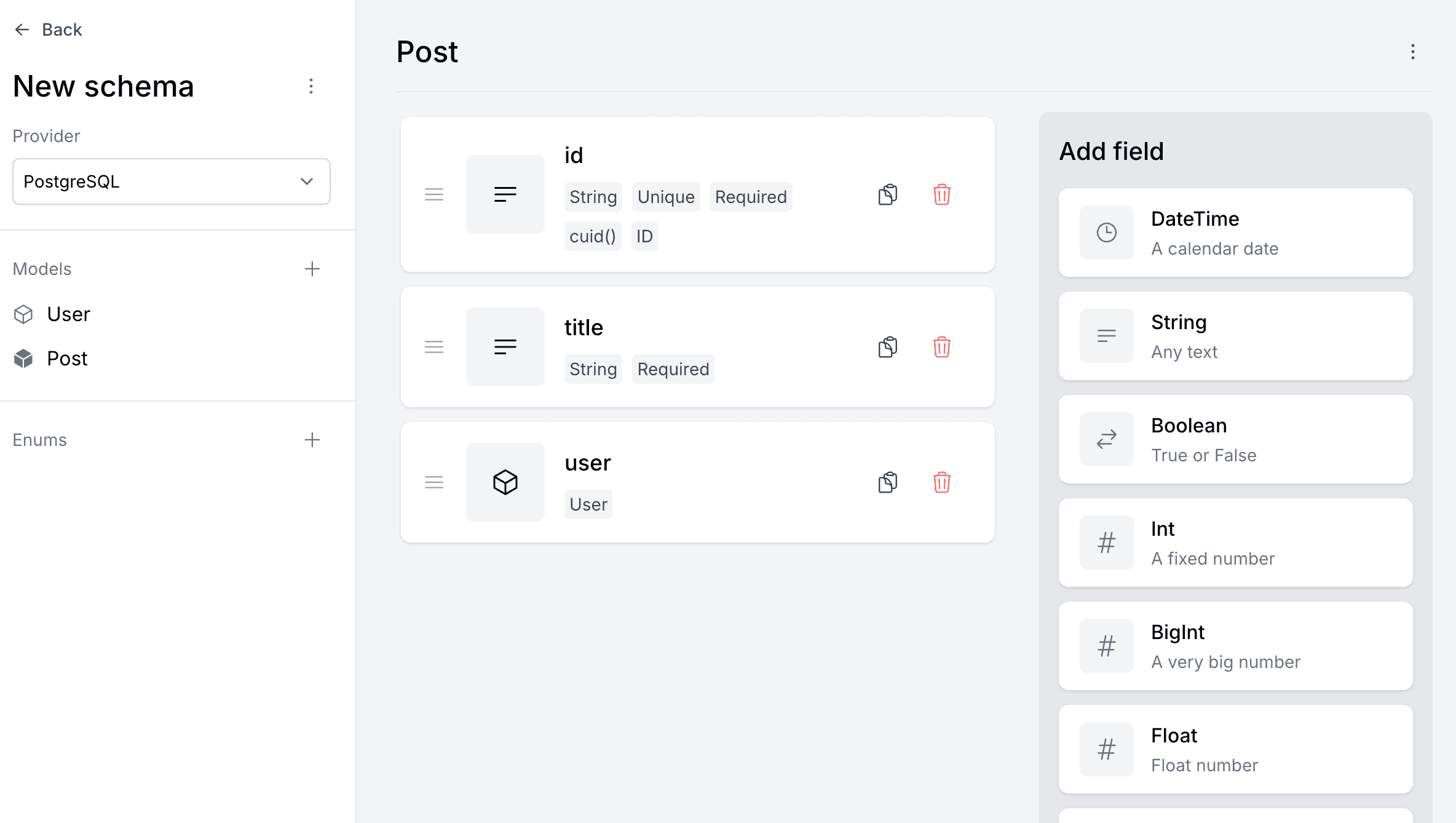
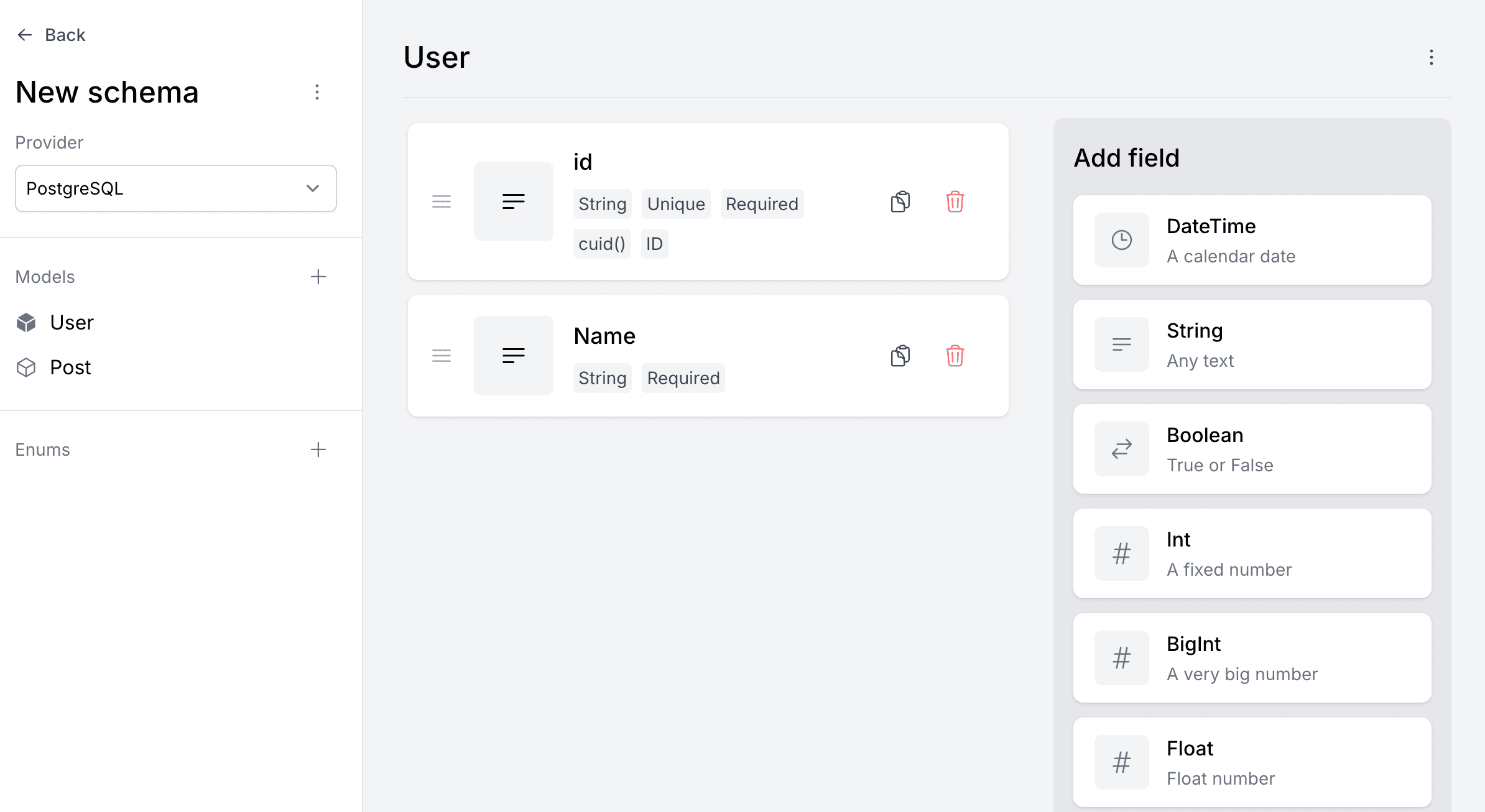
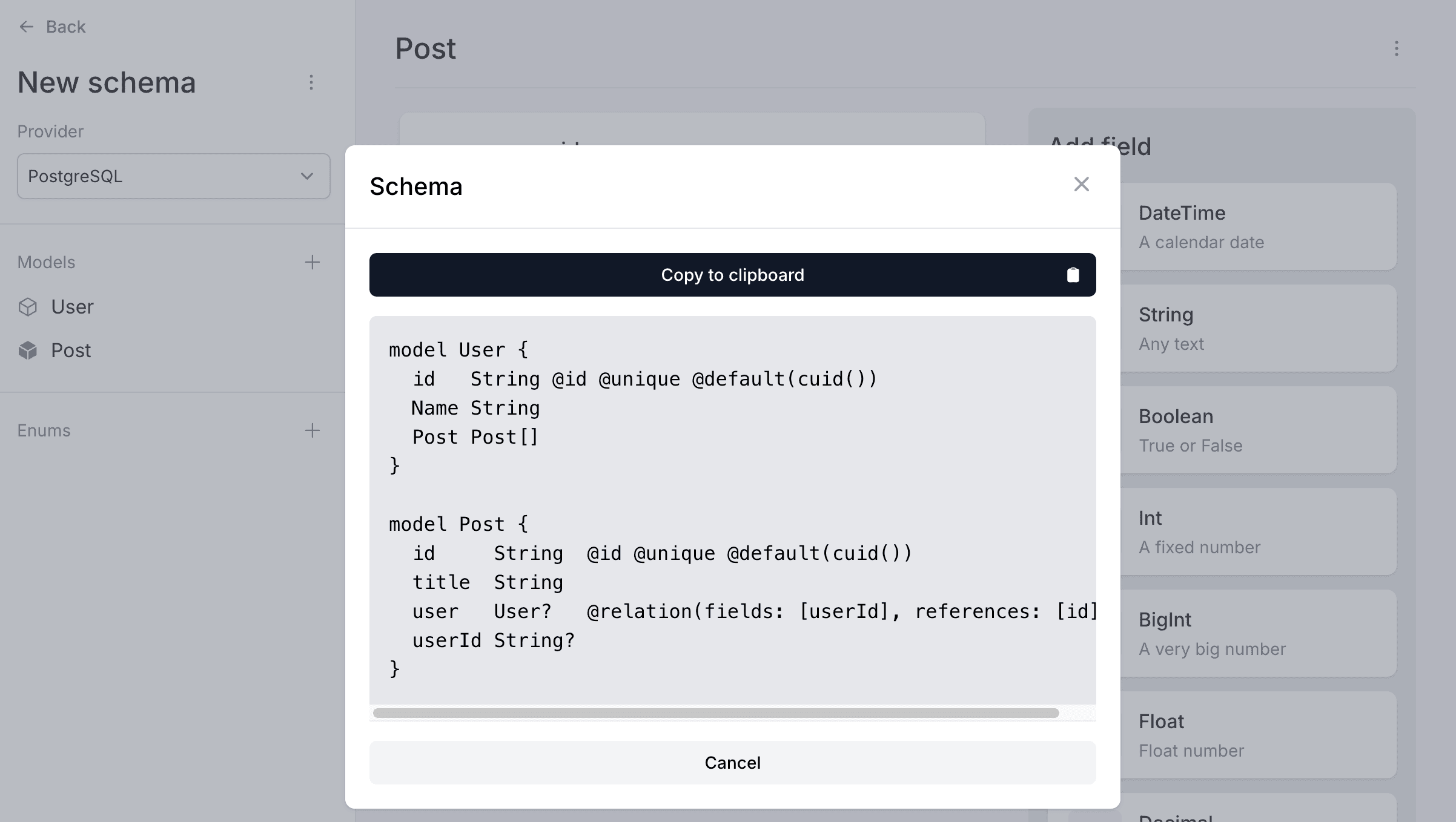
Once you click Generate Schema, PrismaBuilder.io automatically adds
posts Post[]on the User model for you — the reverse side of the relationship is inferred:
What goes into the database vs what stays in Prisma
| Field | Type | Scalar or Model? | Database column? | Purpose |
|---|---|---|---|---|
authorId | String? | Scalar | ✅ Yes | Stores the actual foreign key value |
author | User? | Model | ❌ No | Lets you write include: { author: true } |
posts | Post[] | Model | ❌ No | Lets you write include: { posts: true } |
This separation is powerful. In your code, you can write:
// Load a post with its author
const post = await prisma.post.findUnique({
  where: { id: 1 },
  include: { author: true },
})
// post.author.name → "Alice"

// Load a user with all their posts
const user = await prisma.user.findUnique({
  where: { email: 'alice@example.com' },
  include: { posts: true },
})
// user.posts → [{ id: 1, title: "..." }, ...]
The Complete Schema
Your prisma/schema.prisma should now look like this:
generator client {
  provider = "prisma-client"
  output   = "../app/generated/prisma"
}

datasource db {
  provider = "postgresql"
}

model User {
  id       String  @id @default(cuid())
  name     String?
  email    String  @unique
  password String
  posts    Post[]
}

model Post {
  id        Int      @id @default(autoincrement())
  createdAt DateTime @default(now())
  updatedAt DateTime @updatedAt
  title     String
  content   String?
  published Boolean  @default(false)
  authorId  String?
  author    User?    @relation(fields: [authorId], references: [id])
}
How this maps to the database:
                        PostgreSQL Database
┌─────────────────────────────────────────────────────┐
│ Table: "User"                                       │
│ ┌──────────┬──────────┬─────────┬──────────────────┐│
│ │ id (PK)  │ name     │ email   │ password         ││
│ │ TEXT     │ TEXT     │ TEXT    │ TEXT             ││
│ │          │ nullable │ UNIQUE  │                  ││
│ └──────────┴──────────┴─────────┴──────────────────┘│
│                                                     │
│ Table: "Post"                                       │
│ ┌────────┬───────────┬───────────┬───────┬─────┬───┐│
│ │ id(PK) │ createdAt │ updatedAt │ title │ ... │   ││
│ │ SERIAL │ TIMESTAMP │ TIMESTAMP │ TEXT  │     │   ││
│ └────────┴───────────┴───────────┴───────┴─────┴───┘│
│   authorId (FK) ───────────────────────► User.id    │
└─────────────────────────────────────────────────────┘
Take a moment to verify your schema has no typos. Prisma will tell you if something is wrong, but it is good practice to review before running a migration.
Core Concept: What is a Migration?
A migration is a set of SQL commands that change your database structure. Think of it like a Git commit, but for your database:
| Git | Prisma Migrate |
|---|---|
| You change code | You change schema.prisma |
git diff shows the changes | Prisma compares schema to database |
git commit saves a snapshot | prisma migrate dev creates a migration file |
| Git history tracks all changes | prisma/migrations/ tracks all changes |
Why not just change the database directly?
- History — You can see every change ever made to the database structure
- Reproducibility — Any developer can recreate the same database by running all migrations
- Safety — Migrations are reviewed before running. You see the SQL before it executes
- Collaboration — Migration files are committed to Git. Your team stays in sync
The Migration Workflow
1. Edit schema.prisma (add/change/remove models)
       ↓
2. Run: npx prisma migrate dev --name describe_your_change
       ↓
3. Prisma compares the schema to the current database
       ↓
4. Prisma generates a SQL migration file
       ↓
5. Prisma runs the SQL against the database
       ↓
6. Prisma regenerates the client (npx prisma generate)
Run Your First Migration
Make sure your schema is saved, then run:
npx prisma migrate dev --name init
Let's break down this command:
prisma migrate dev— run a migration in development mode (creates + applies the migration)--name init— a label for this migration. Use a short, descriptive name (like a Git commit message). Prisma prepends a timestamp, so the resulting folder will be named something like20260312155816_initinsideprisma/migrations/.
You should see output similar to:
Loaded Prisma config from prisma.config.ts.

Prisma schema loaded from prisma/schema.prisma.
Datasource "db": PostgreSQL database "postgres", schema "public" at "accelerate.prisma-data.net"

Applying migration `20260312XXXXXX_init`

The following migration(s) have been created and applied from new schema changes:

prisma/migrations/
  └─ 20260312XXXXXX_init/
    └─ migration.sql

Your database is now in sync with your schema.
What just happened:
- Prisma read your
schema.prismaand compared it to the database (which was empty) - It generated a SQL file with
CREATE TABLEstatements - It ran that SQL against your Prisma Postgres database
- It regenerated the Prisma Client with types for
UserandPost
Inspect the Generated SQL
Prisma created a migration file at prisma/migrations/<timestamp>_init/migration.sql. Open it:
-- CreateTable
CREATE TABLE "User" (
    "id" TEXT NOT NULL,
    "name" TEXT,
    "email" TEXT NOT NULL,
    "password" TEXT NOT NULL,

    CONSTRAINT "User_pkey" PRIMARY KEY ("id")
);

-- CreateTable
CREATE TABLE "Post" (
    "id" SERIAL NOT NULL,
    "createdAt" TIMESTAMP(3) NOT NULL DEFAULT CURRENT_TIMESTAMP,
    "updatedAt" TIMESTAMP(3) NOT NULL,
    "title" TEXT NOT NULL,
    "content" TEXT,
    "published" BOOLEAN NOT NULL DEFAULT false,
    "authorId" TEXT,

    CONSTRAINT "Post_pkey" PRIMARY KEY ("id")
);

-- CreateIndex
CREATE UNIQUE INDEX "User_email_key" ON "User"("email");

-- AddForeignKey
ALTER TABLE "Post" ADD CONSTRAINT "Post_authorId_fkey" FOREIGN KEY ("authorId") REFERENCES "User"("id") ON DELETE SET NULL ON UPDATE CASCADE;
Mapping from Prisma to SQL:
| Prisma | SQL |
|---|---|
model User { ... } | CREATE TABLE "User" (...) |
id String @id | "id" TEXT NOT NULL + PRIMARY KEY ("id") |
name String? | "name" TEXT (nullable by default) |
email String @unique | "email" TEXT NOT NULL + CREATE UNIQUE INDEX |
id Int @default(autoincrement()) | "id" SERIAL NOT NULL |
@default(now()) | DEFAULT CURRENT_TIMESTAMP |
@relation(fields: [authorId]) | FOREIGN KEY ("authorId") REFERENCES "User"("id") |
Notice the ON DELETE SET NULL at the end — if a user is deleted, their posts' authorId is set to null instead of deleting the posts. This is the default behavior for optional relations.
You never need to write this SQL yourself. Prisma generated it from your models. But understanding the output helps you debug issues and reason about your database structure.
Verify with Prisma Studio
Let's confirm the tables were created. Run:
npx prisma studio
This opens a browser at http://localhost:5555. You should see two tables:
- User — with columns:
id,name,email,password - Post — with columns:
id,createdAt,updatedAt,title,content,published,authorId
Both tables are empty — that is expected. We will add data in Step 6 (Seeding).
Click on a table name to see its columns and data types. Everything should match what you defined in schema.prisma.
Prisma Studio won't start? It requires a direct database connection (
postgres://...), not an accelerated URL. Make sure yourDATABASE_URLin.envis the direct URL (see Step 4).
Press Ctrl+C in the terminal to stop Prisma Studio when you are done.
Verify the Connection
Prisma Studio showed us the tables visually — but let's also confirm the connection from the command line.
Check if the schema is in sync
npx prisma migrate dev --name test-connection
Since we haven't changed the schema since the init migration, Prisma should confirm there is nothing new to migrate:
Prisma schema loaded from prisma/schema.prisma.
Datasource "db": PostgreSQL database "postgres", schema "public" at "db.prisma.io:5432"

Already in sync, no schema change or pending migration was found.
"Already in sync" means your local schema matches the database — the connection is working and all migrations have been applied.
Pull the schema from the database
You can also do the reverse — read the schema from the live database:
npx prisma db pull
Prisma schema loaded from prisma/schema.prisma.
Datasource "db": PostgreSQL database "postgres", schema "public" at "db.prisma.io:5432"

✔ Introspected 2 models and wrote them into prisma/schema.prisma in 7.27s
This introspects the database and updates your schema.prisma to match what is actually in the database. Since we just migrated, it should find the same 2 models (User and Post) and produce no real changes.
When is
db pulluseful? If someone else changes the database directly (outside of Prisma), or if you want to double-check that your schema truly matches the live database. It is a safety net, not something you run every day.
Your project structure now
nextjs-16-crud/
├── prisma/
│   ├── schema.prisma                ← Now has User and Post models
│   └── migrations/
│       ├── migration_lock.toml      ← Locks the database provider
│       └── 20260312XXXXXX_init/
│           └── migration.sql        ← The generated SQL
├── app/
│   ├── generated/
│   │   └── prisma/                  ← Regenerated with User & Post types
│   ├── layout.tsx
│   ├── Header.tsx
│   ├── page.tsx
│   └── ...
├── prisma.config.ts
├── .env
└── package.json
Should you commit migration files? Yes — always commit the
prisma/migrations/folder to Git. Migration files are a version history of your database schema, just like Git is a version history of your code. When another developer clones the project and runsnpx prisma migrate dev, Prisma uses these files to set up their database to the same state. Themigration_lock.tomlfile should also be committed — it ensures everyone uses the same database provider.However, do not commit
app/generated/prisma/— it is auto-generated from the schema and already listed in.gitignore.
Summary & Key Takeaways
| Concept | What it means |
|---|---|
| Model | A Prisma definition that maps to a database table (model User { ... }) |
| Field | A property on a model that maps to a database column (email String) |
| Scalar types | Basic data types: String, Int, Boolean, DateTime, Float |
| Field attributes | Modifiers like @id, @unique, @default(...), @updatedAt |
| Optional field | A field that can be null, marked with ? (String?) |
| Primary key | The @id field — uniquely identifies each row in a table |
| Foreign key | A field that references another table's primary key (authorId String) |
| Relation | A connection between models (@relation(fields: [...], references: [...])) |
| One-to-many | One user has many posts. Defined with Post[] on User and @relation on Post |
| Migration | A versioned SQL change that updates the database structure |
prisma migrate dev | Creates and applies a migration, then regenerates the client |
What is Next
In Step 6, we will write a seed script that populates the database with sample users and posts. This gives us realistic data to work with when we start building the UI that reads from the database.